


How to Improve Home Wi-Fi: Practical Ways to Boost Internet Speed and Eliminate Dead Zones
Home internet performance depends on more than the broadband package supplied by an internet service provider. Router placement, wireless signal coverage, network congestion and the number of connected devices all influence the speed and reliability of a household Wi-Fi connection. As internet usage expands across remote work, online education, gaming and high-definition streaming, weak signals and Wi-Fi dead zones have become common challenges in residential environments.
Improving home Wi-Fi does not necessarily require purchasing expensive equipment. Users can often achieve better results by repositioning their routers, adjusting network settings and reducing wireless interference. For larger properties or homes with multiple floors, Wi-Fi extenders and mesh networking systems offer additional options for expanding coverage.
Finding the Right Router Location
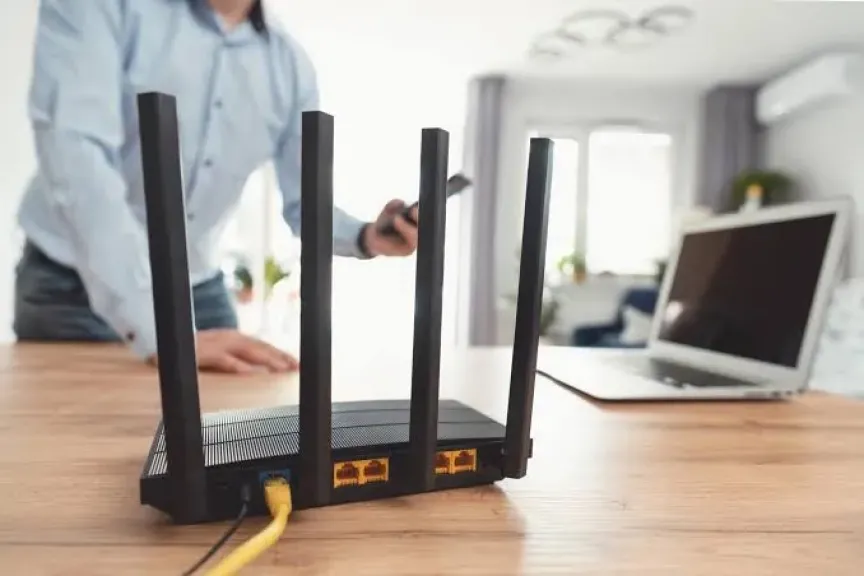
Router placement is one of the most important factors affecting wireless coverage. Ideally, the device should be positioned in a central location within the home, elevated above floor level and placed in an open area.
Keeping the router inside a cabinet, behind furniture or next to thick walls and large metal objects can weaken its signal. Positioning it near an external wall or window may also direct part of the wireless signal outside the area where coverage is needed.
Electronic devices can create additional interference. Microwave ovens, cordless phones and baby monitors are among the equipment that should be kept away from wireless routers whenever possible.
For routers equipped with external antennas, adjusting their orientation in different directions may also help distribute the signal more effectively across multiple rooms.
Understanding 2.4 GHz, 5 GHz and 6 GHz Wi-Fi
Modern wireless routers support different frequency bands, each offering specific advantages and limitations.
The 2.4 GHz band generally provides longer coverage and better penetration through walls and obstacles. However, it typically offers lower data throughput and is more susceptible to interference from neighboring wireless networks and household devices.
The 5 GHz band supports higher data rates and offers more wireless channels, making it suitable for high-definition video streaming, online gaming and video conferencing. Its main limitation is a shorter effective range and greater signal attenuation through physical obstacles.
The 6 GHz band, available on compatible Wi-Fi 6E and newer equipment, provides additional spectrum and can reduce congestion. However, both the router and connected device must support the band to benefit from it.
Choosing the appropriate frequency therefore depends on the distance between devices, the home's layout and the type of online activities being performed.
Eliminating Wi-Fi Dead Zones
Wi-Fi dead zones are areas where wireless signals become too weak or unstable to maintain a reliable connection. They commonly occur in distant bedrooms, basements and rooms separated from the router by multiple walls.
One solution is a Wi-Fi extender, also known as a repeater. These devices receive an existing wireless signal and rebroadcast it to extend coverage into areas that are otherwise difficult to reach.
However, placement is critical. An extender should be installed in an area where the original router signal is still reasonably strong, rather than directly inside a dead zone. Otherwise, it may simply repeat a weak connection and deliver disappointing results.
For larger homes, multi-story buildings or properties with complicated layouts, mesh Wi-Fi systems can offer a more comprehensive solution.
A mesh network consists of a primary router and additional wireless nodes distributed throughout the property. These nodes work together to provide broader coverage through a unified wireless network, allowing connected devices to move between coverage points. Proper positioning and a strong connection between the nodes remain essential for satisfactory performance.
Optimizing Router Settings and Reducing Interference
Improving wireless performance does not always require additional hardware. Adjusting router settings can help reduce interference and improve network reliability.
Selecting a less congested wireless channel is particularly important for the 2.4 GHz band. Channels 1, 6 and 11 are commonly used because they provide non-overlapping channel options in this frequency range.
Users should also keep router firmware updated, enable modern wireless security protocols and replace default administrative passwords. Reviewing connected devices can help identify unauthorized users or equipment consuming network capacity.
The number of simultaneously connected devices also affects available bandwidth. Multiple high-definition video streams, large downloads and online gaming sessions can compete for network resources.
Some routers support Quality of Service (QoS), a feature that allows users to prioritize selected devices or applications, helping allocate available bandwidth according to household requirements.
When to Upgrade the Router or Use Ethernet
If connection problems persist after repositioning the router and optimizing its settings, outdated hardware may be limiting network performance.
Upgrading to a router supporting Wi-Fi 6, Wi-Fi 6E or Wi-Fi 7 may improve network capacity and multi-device performance. However, actual benefits depend on the broadband connection, router specifications and compatibility of connected devices.
Another practical option is using Ethernet cables to connect desktop computers, gaming consoles and smart televisions directly to the router. Wired connections generally offer greater stability and more consistent performance than wireless connections, particularly for applications requiring continuous data transmission.
Before purchasing new equipment, users should measure internet speeds near the router and in different rooms. If speeds are consistently poor even when testing close to the router, the problem may originate from the broadband service, telephone line or internet provider's infrastructure rather than household Wi-Fi coverage.
Distinguishing between broadband limitations and wireless network problems is essential to choosing the right solution and avoiding unnecessary equipment purchases.
related topics
 Ministry of Communications Successfully Concludes the First Edition of the ”Aqdar” Program...
 Capital.com Enters Global Banking Partnership with Standard Chartered to Drive Virtual Asset...
 Souhoola Partners with MetLife to Provide Insurance Coverage Worth EGP 7 Billion
 Gold Prices in Egypt Today: 24-Karat Reaches 7,017 EGP Following Global Ounce...
 Raya Holding Explores Establishing Egypt's First Digital Bank via ”Aman” in Partnership...
 Three iPad Upgrades Expected in 2027 as Apple Prepares OLED and Next-Generation...
 inDrive Launches ”Tawwar” Initiative to Empower 1,000 Drivers' Children in Egypt with...
 Kenzz Launches Egypt’s Biggest 'Black Friday 2026' Campaign with up to 100%...
 Switching to Galaxy Is Easier Than Ever with the New Upgraded Smart...
 Finance Minister: Stimulating Investment and Partnering with the Private Sector is a...
 100,000 Housing Units and a 70-Feddan Sanitary Landfill as Part of Environmental...
 ACT Group Renews Strategic Partnership with HPE at the 30th Edition of...